
User Self-Service: Create Key
SSO users can create and manage their own API Keys
After the admin enables self-service Key creation, users can manage their own Keys.
Prerequisites for self-service Key creation:
- Admin has completed Token supplier configurationToken Supplier Configuration
- Admin has enabled self-service Key creation in system settings
- Admin has enabled personal Key on the supplier edit page
Self-Service Key Management
1
Enter Personal Dashboard
Manage your personal API Keys from the app center home page.
2
One-Click Create Key
In the "My Keys" section, click the "Create Key" button.
- System identifies all available Token suppliers
- Generates a virtual API Key for each eligible supplier
One-Click Create Key
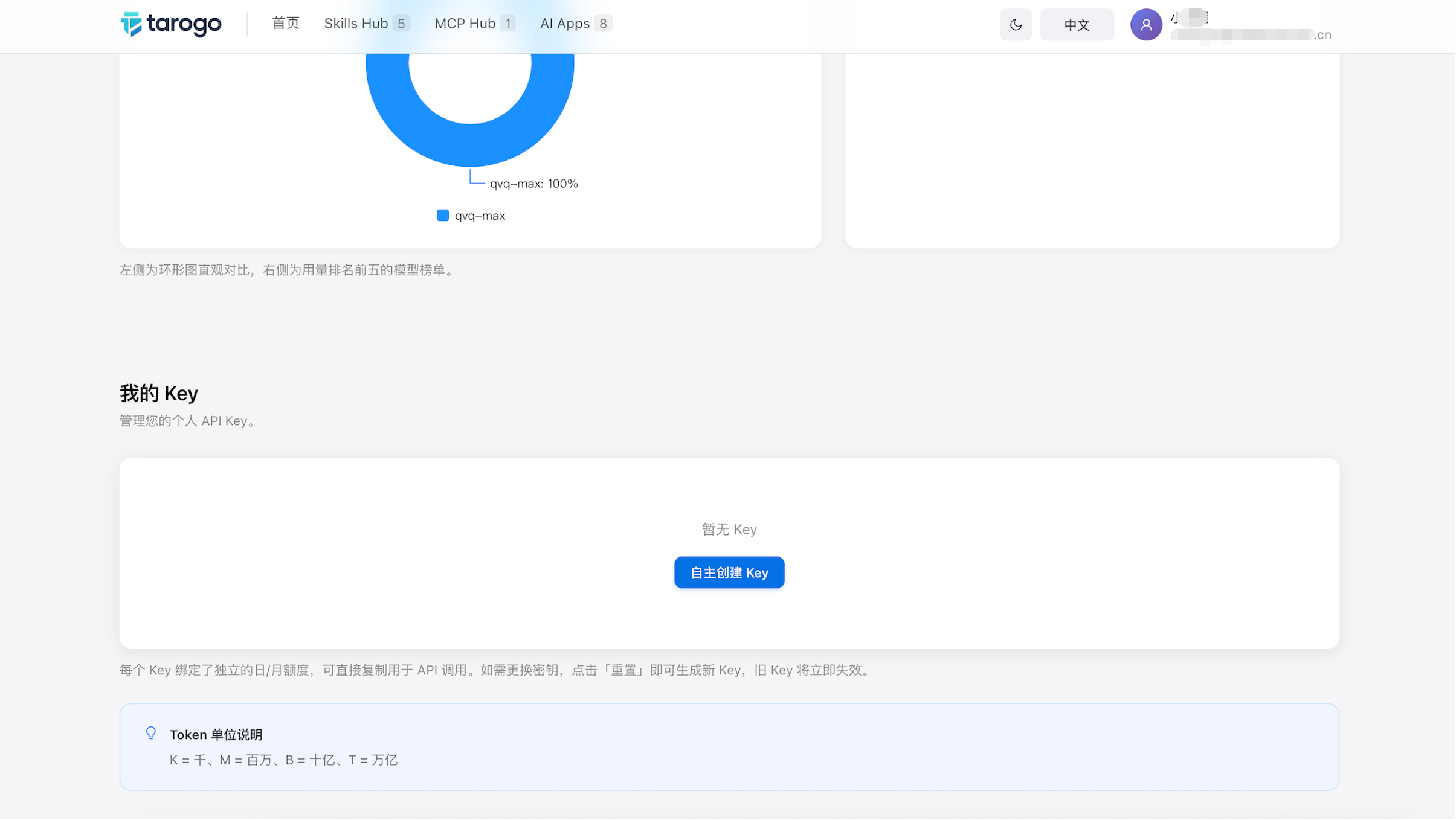
Figure 1: "Create Key" button
3
View "My Keys" List
The list shows all personal Keys owned by the current user.
| Field | Description |
|---|---|
| Key Name | Custom Key name |
| Supplier | Token supplier bound to this Key |
| Bind Type | Fixed as "Personal" |
| Key Suffix | Last 4 characters |
| Usage | Today's usage / daily quota |
| Status | Green "Active" or Gray "Disabled" |
| Actions | Copy Key, Enable/Disable, Reset Key |
View "My Keys" List
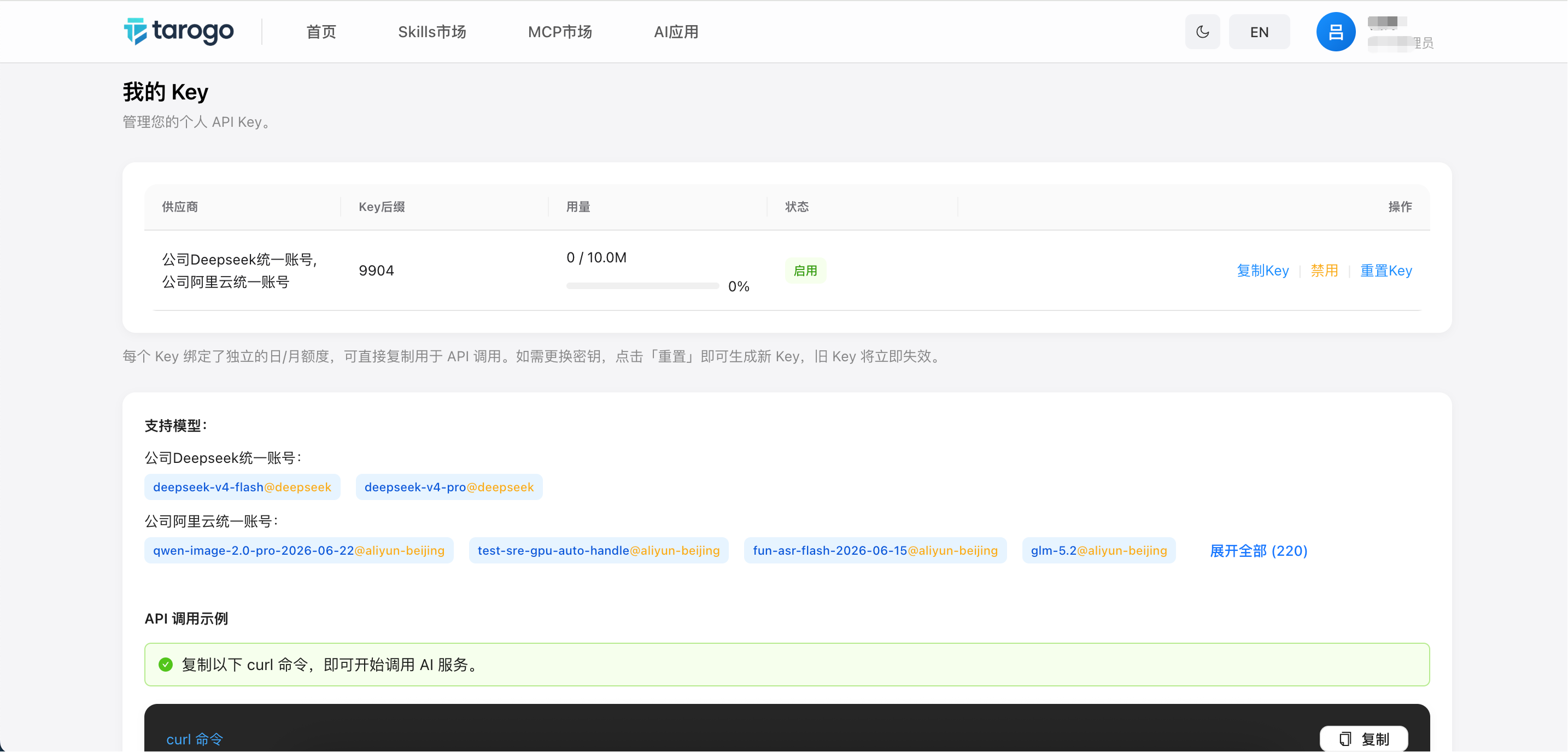
Figure 2: "My Keys" list
API Request Examples
API request examples shown at the bottom of Key list.
Tip: Replace the gateway domain and Key with actual values.
Key Management Operations
Users can manage their own Keys:
Copy Key
Copy the plaintext Key to the clipboard.
Enable / Disable
Enable or disable your own Key.
Reset Key
Generate a new Key when compromised.
Important Notes
- Each user can only have one personal Key per supplier
- Keep API Keys secure
- Reset immediately if compromised
- User Keys are subject to admin-set limits
- Admins can disable or delete user Keys