
Department Management
Manage the enterprise organizational hierarchy in a tree structure. Supports per-department Token quota settings and Excel batch import/export.
How to Access
In the tenant admin panel, navigate to "System Management → Department Management" to enter the department management page. This page is only accessible to users with the Tenant Admin role.
Purpose of Department Management
Through department management, enterprise admins can create department hierarchies that mirror the actual organizational structure and configure independent Token quotas for each department: department quotas take precedence over tenant default quotas; when a department has daily/monthly quotas set, all API Keys of members under that department are constrained by the department quota instead of the tenant default. Departments without quota settings inherit the tenant default values. This mechanism enables fine-grained resource allocation and cost control.
How to Use
- Navigate to "System Management → Department Management". The left panel shows the department tree; the right panel shows the department list
- Click "Add Department" to open a drawer. Fill in the department name, code (required), and optional parent department
- Optionally configure daily/monthly Token quotas. If left empty, the tenant default quota applies. If filled, members under this department use this quota
- In the department list, click "Edit" to modify department info; click "Delete" to remove a department (requires confirmation)
- Supports Excel template batch import (download template → fill data → upload) and export of the current department list to Excel
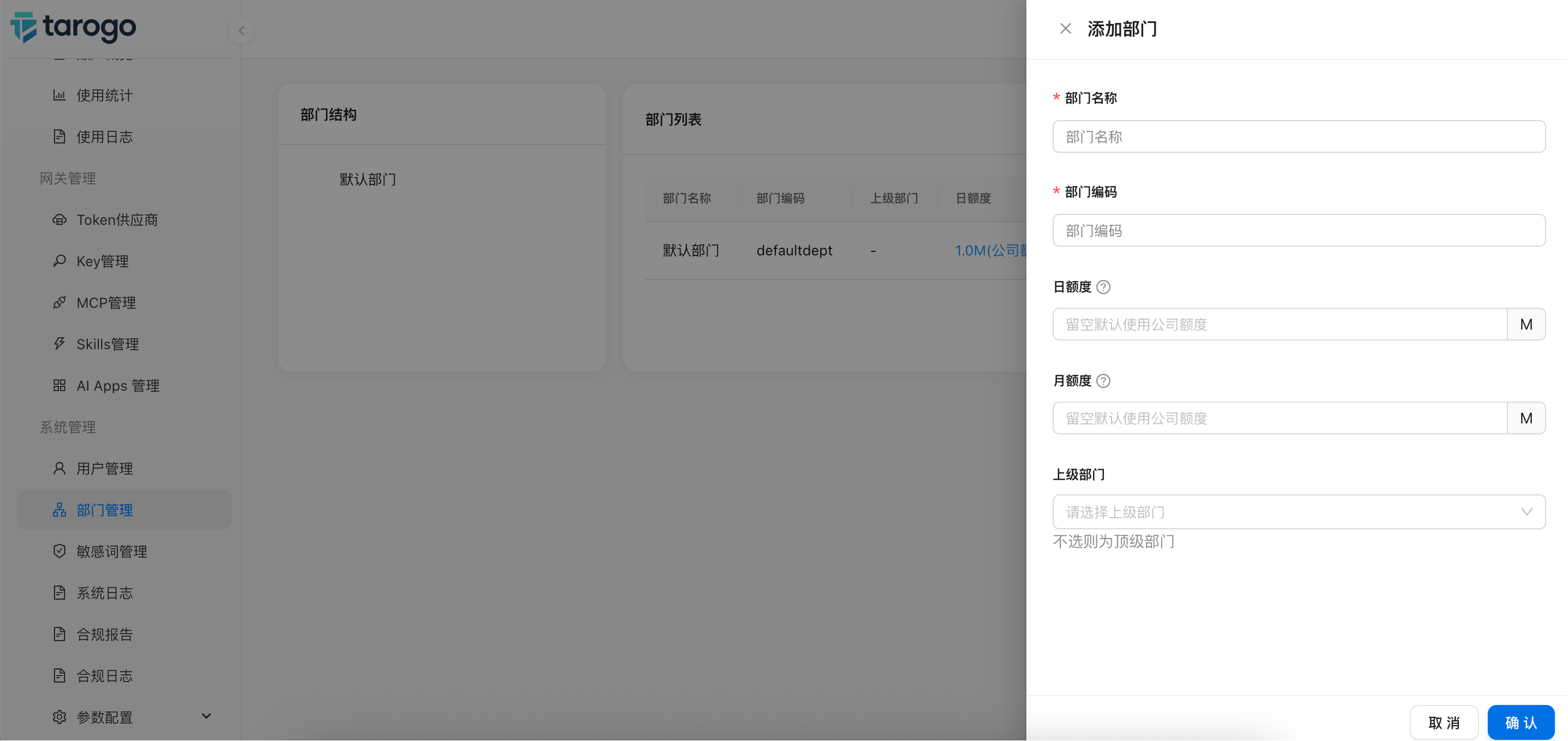
Figure: Add Department Drawer Form
Notes
- Department quotas take effect immediately. All API Keys of members under the department will use the department quota instead of the tenant default
- After deleting a department, members under it lose the department quota constraint and revert to the tenant default quota
- Departments support multi-level nesting. Select a parent department when creating or editing to establish hierarchy. The parent department cannot be changed during editing