
Token Supplier Configuration
Add and configure upstream AI providers to support API Key creation
Token suppliers are AI model service platforms. Before creating an API Key, complete supplier configuration first.
Supplier List
Log in to the management console and navigate to "Gateway Management" → "Token Suppliers".
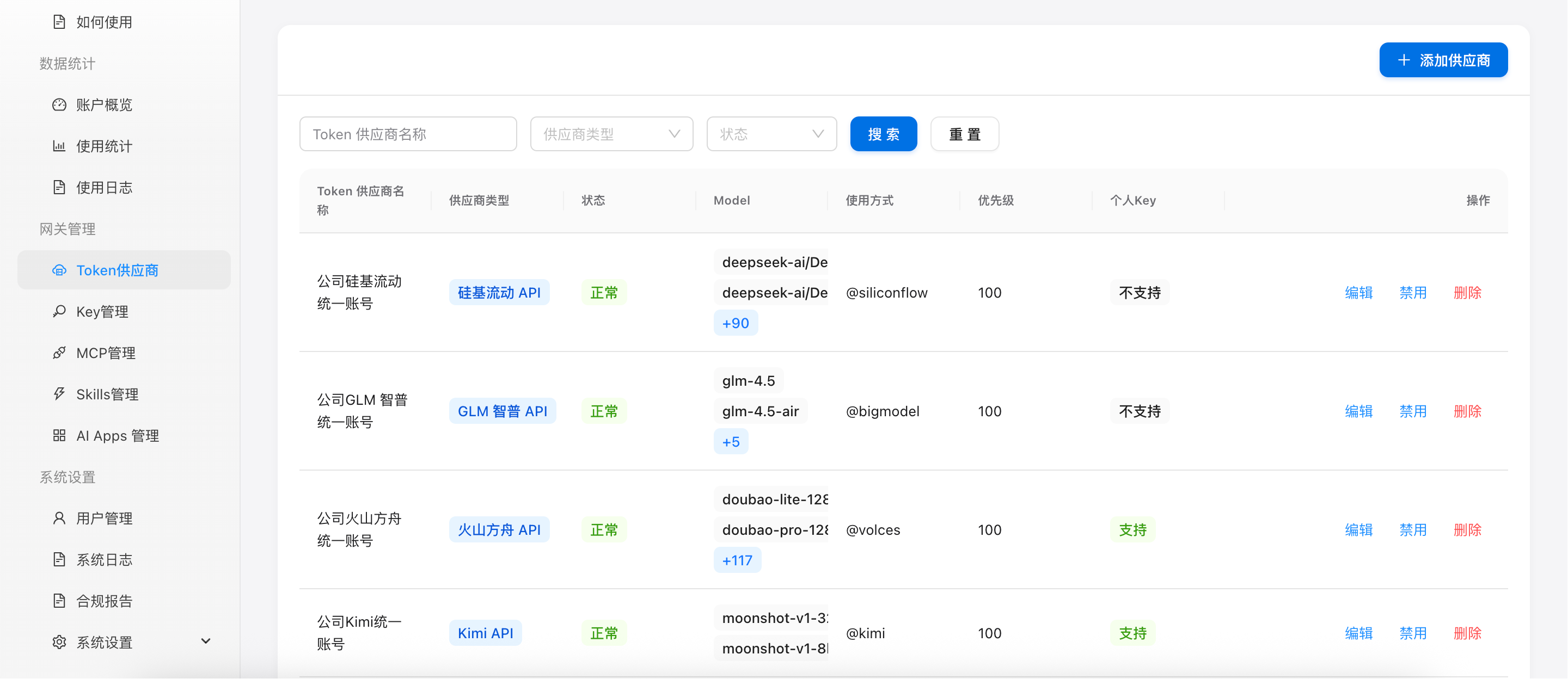
Figure 1: Token Supplier Management List
List Field Description
| Field | Description |
|---|---|
| Supplier Name | Custom supplier name, e.g., "Aliyun-Qwen" |
| Supplier Type | Displayed as a blue badge, e.g., Deepseek API, Aliyun Bailian API |
| Status | Green for "Active", gray for "Disabled" |
| Model | Model list supported by this supplier, with +N badge for more |
| Usage | Use model@supplier_type format in the model parameter. 示例: "model": "qwen3.7-max-preview@aliyun-beijing" |
| Priority | Lower numbers = higher priority. Default 100. |
| Personal Key | Green for "Supported", gray for "Not Supported" |
| Actions | Edit, enable/disable, delete |
Search & Filter
Search and filter options are available above the list:
- Name search: enter supplier name keyword
- Type filter: filter by supplier type
- Status filter: filter by "Active" or "Disabled"
- Click "Reset" to clear all filters
Add Supplier
Open the Add Form
Click the "Add Supplier" button in the top-right corner.
Fill in Supplier Info
Fill in the following information in the form:
| Field | Required | Description |
|---|---|---|
| Token Supplier Name | Yes | 2-50 characters, e.g., "Aliyun-Qwen" or "Company Deepseek Account" |
| Supplier Type | Yes | Select from dropdown, automatically fills the API Base URI. Built-in types: Deepseek API, Alibaba Cloud Bailian (Beijing/Singapore), Kimi, Volcengine Ark, MiniMax, GLM Zhipu, SiliconFlow, Tencent Cloud |
| API Key | Yes | Obtained from the supplier platform, at least 10 characters. AI Gateway uses this Key to communicate with the upstream supplier |
| Usage Priority | No | Lower number = higher priority, default 100. When multiple suppliers support the same model, the system selects the highest priority (smallest number) supplier first |
| Allow Personal Key | No | Toggle button, enabled by default. When enabled, users can generate personal Keys for this supplier. When disabled, this supplier is not available for personal Key creation |
Confirm Addition
After filling in all required fields, click "Submit".
Fill in Supplier Info
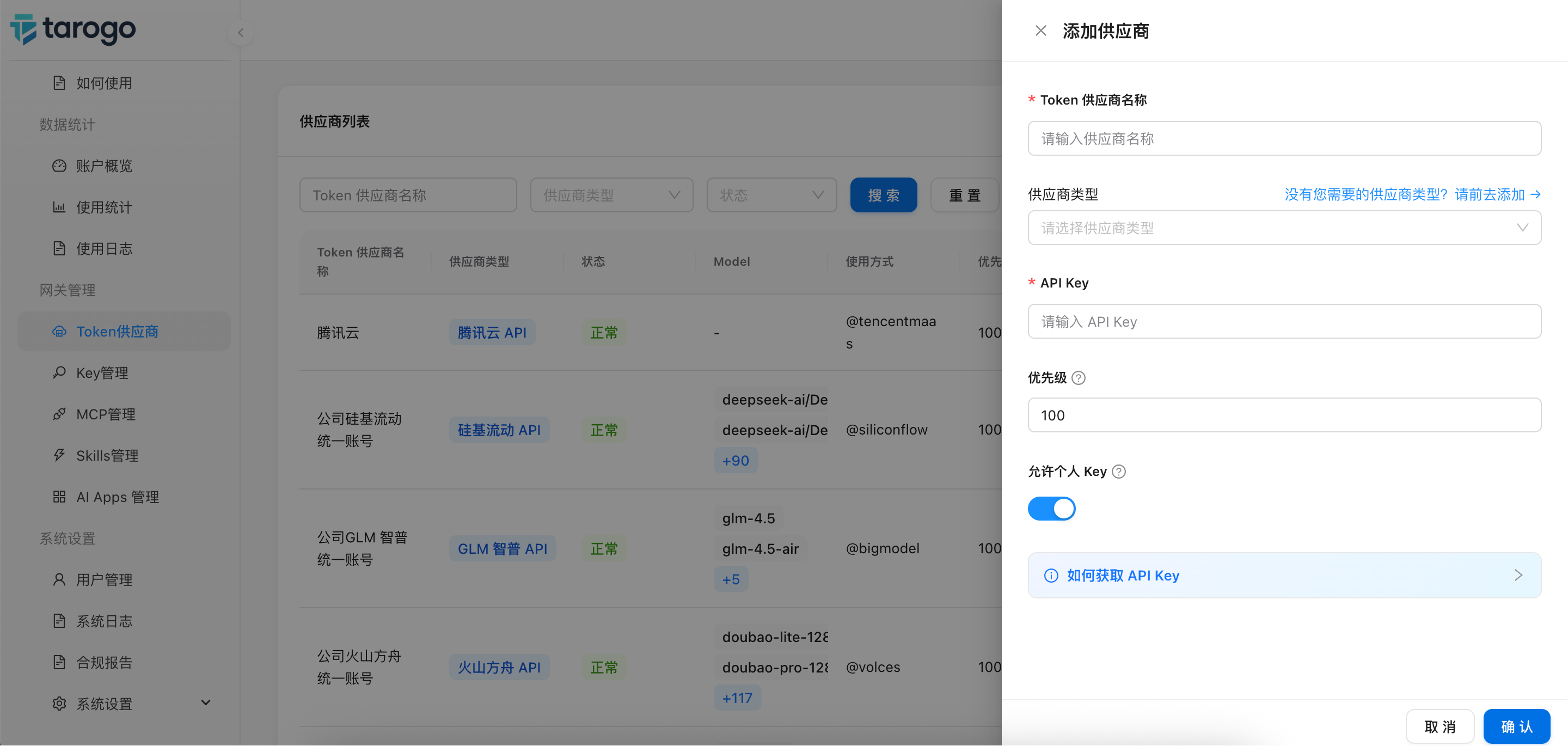
Figure 2: Add Supplier form
Edit Supplier
Enter Edit Mode
Click the "Edit" button in the actions column.
Advanced Edit Features
In edit mode, the following batch operations are available:
- Sync Model List:Pull the latest model list from the supplier API.
- Sync to All Keys:Add this supplier to all API Keys.
- Clear from All Keys:Remove this supplier from all API Keys.
Enter Edit Mode
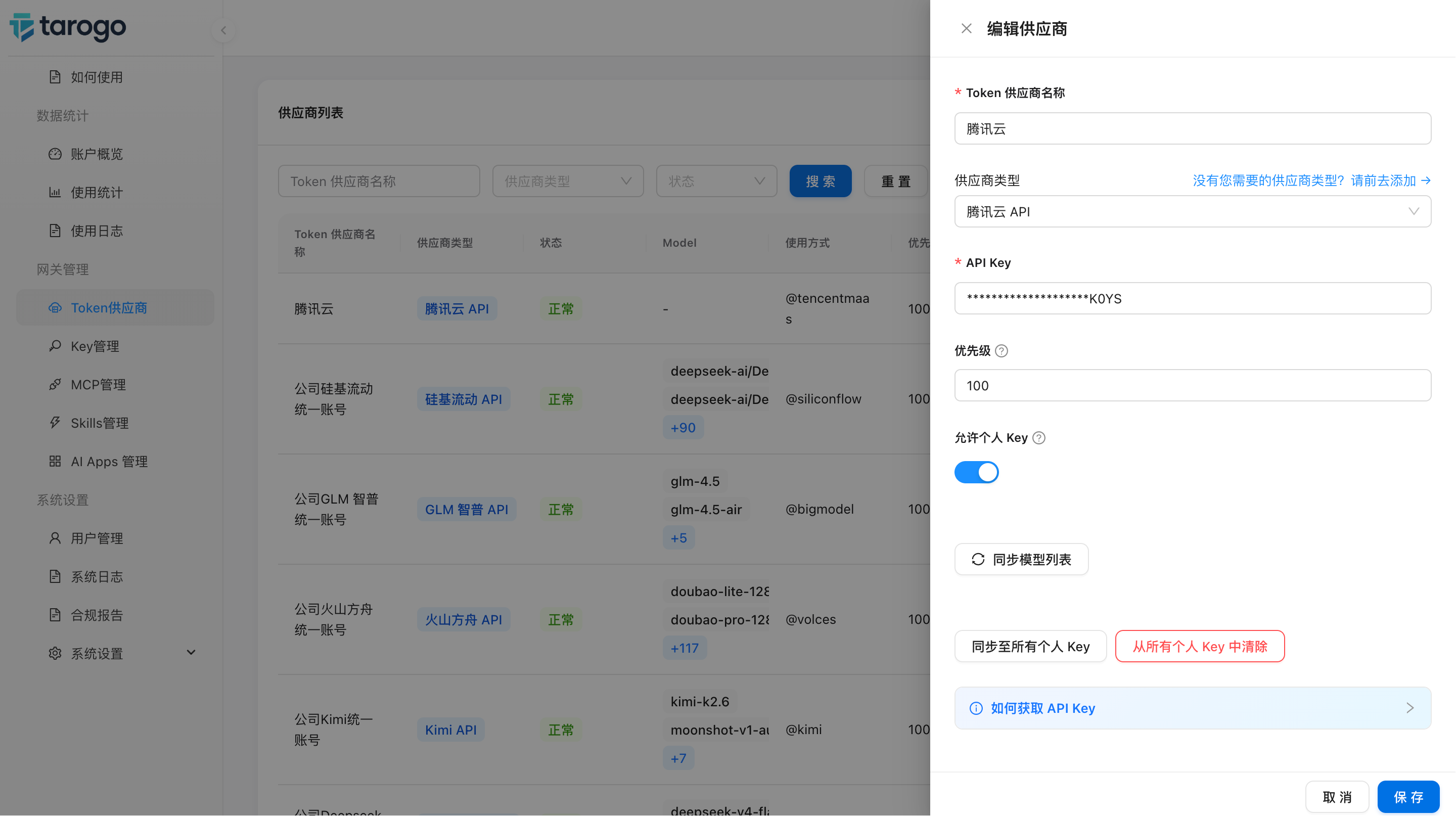
Figure 3: Edit supplier form
Beyond built-in standard supplier types, you can also create custom supplier types. For details, please refer to:Misc Settings → Custom AI Token Provider Type
Enable/Disable & Delete
- Enable/Disable: Temporarily stop a supplier.
- Delete: Permanently remove a supplier. This action is irreversible.