
Usage Guide
Team members browse the MCP Hub to discover available services, view details and capabilities, and get configuration for integration into their AI Agent.
Usage Steps
Enter MCP Hub
- After logging in, go to "App Center". The top navigation bar shows the MCP Hub entry and the number of available MCP Servers.
- Click the "MCP Hub" tab to enter the MCP service market page. All MCP Servers you have access to are displayed as cards.
- Each card includes: service name, code, connection status, type tag, and a brief description for easy browsing.
Search & Filter
- Enter service name, code, or description keywords in the search box to filter matching MCP Servers in real time.
- Use the type tag filter to quickly filter by category. Click a tag to view only services of that type.
View Service Details
- Click on an MCP Server card to enter the detail page and view full service information.
- The "Overview" tab displays basic service info (name, code, protocol, endpoint, type) and connection status.
- The "Capabilities" tab lists the capabilities the service supports: Tools, Resources, and Prompts.
- The statistics area shows: total calls, success rate, average response time, and online rate.
Copy Access Configuration
- Find the "Usage Config" section on the detail page. The system automatically generates the mcpServers configuration snippet for your Agent.
- Select the authentication mode (OAuth or API Key) and copy the corresponding JSON configuration.
- Paste the configuration into your AI Agent's configuration file and you're ready to go.
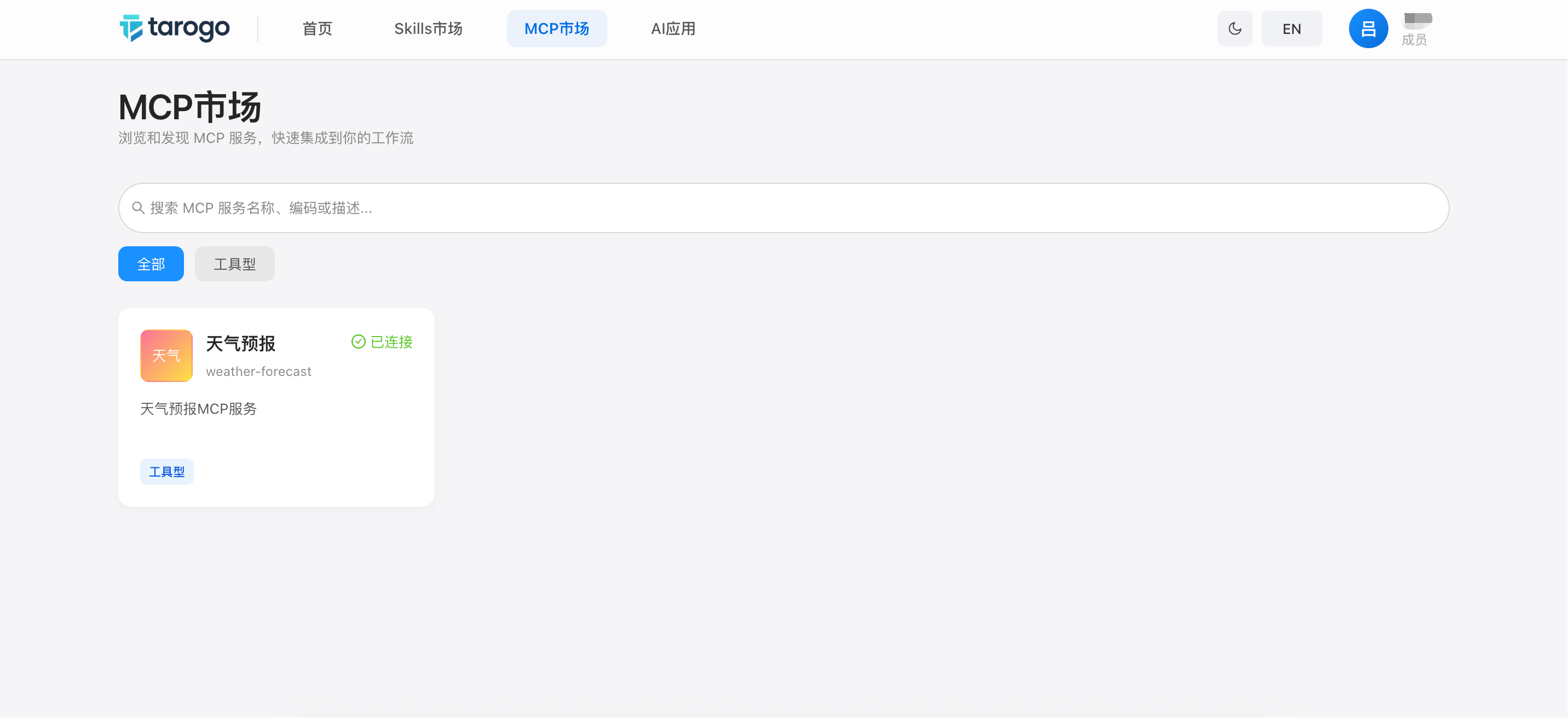
Figure 1: MCP Hub — Browsing Available MCP Services
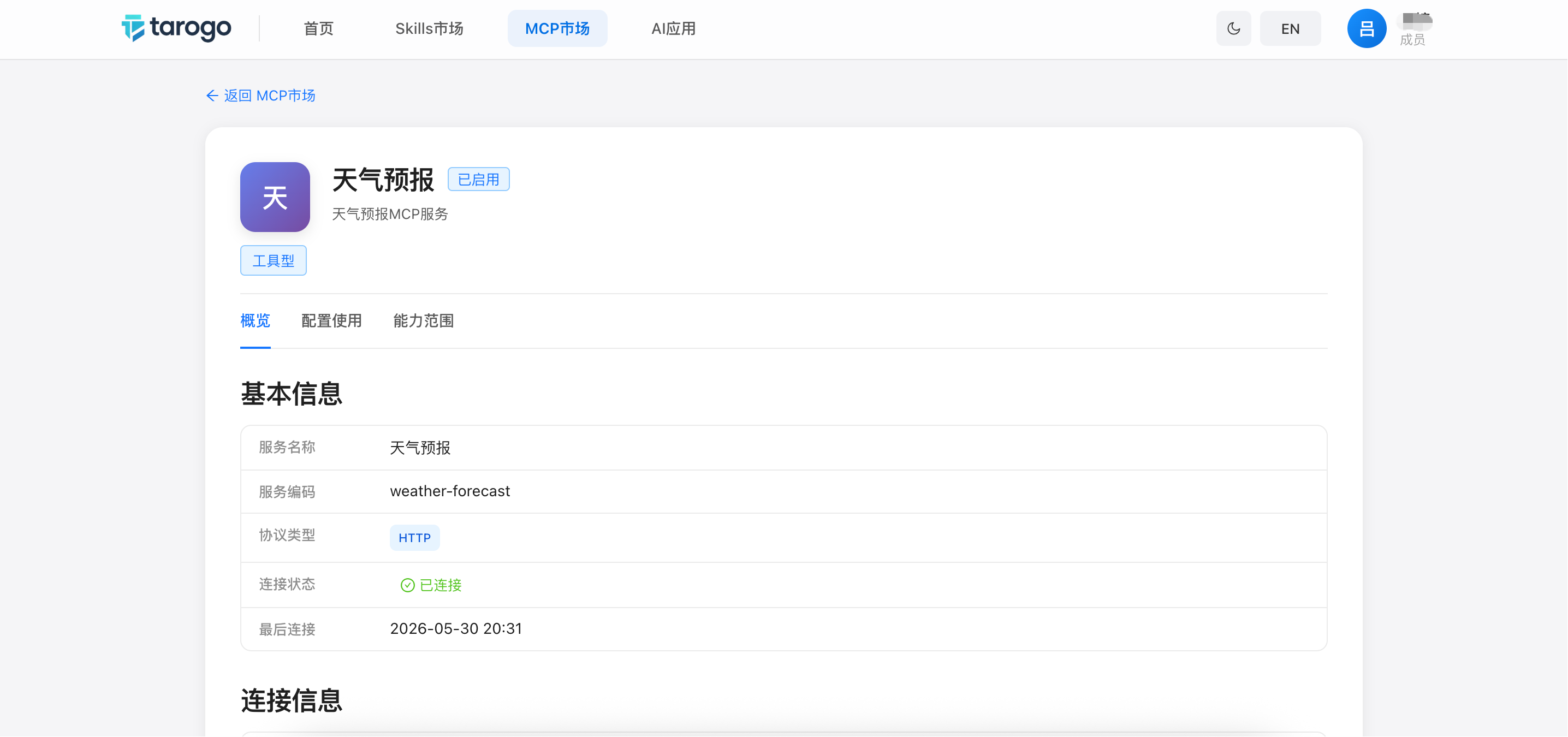
Figure 2: MCP Server Detail Page — Overview & Capabilities
Access Configuration Example
Copy the following JSON configuration into your AI Agent's mcpServers configuration and replace {YOUR_API_KEY} with your own API Key.
{
  "mcpServers": {
    "ServerName": {
      "url": "https://mcp.gateway.ai/{serverCode}/mcp",
      "headers": {
        "x-api-key": "{YOUR_API_KEY}"
      }
    }
  }
}
Authentication Methods
API Key Mode
After the admin creates a personal API Key, include x-api-key in the request header. The gateway identifies the caller by the Key and performs permission verification.
OAuth 2.0 Mode
After the admin completes OAuth authorization, the system generates authorization credentials. The gateway automatically handles token acquisition and refresh during Agent calls — no manual authentication flow required.
Interactive Features
Search
Search by service name, code, or description keywords to quickly locate the MCP Server you need.
Capability Preview
View the Tools, Resources, and Prompts lists on the detail page to understand the specific capabilities the service provides.
One-Click Copy
Copy the mcpServers configuration with one click on the detail page and paste it into your Agent to start using it.
Important Notes
- You can only see MCP Servers you have permission to access. If no services are found, contact your admin to configure permissions.
- API Keys must be created by an admin in the management console. Personal Keys can be reset at any time.
- After OAuth authorization is complete, the authorized status is visible upon returning to the system — no repeated authorization needed.
- MCP Server connection status can be viewed on the detail page. Contact your admin if you encounter connection issues.