
Admin Configuration
After logging into the management console, admins create and manage apps in "Resource Management" → "AI Apps Management".
Enter AI Apps Management Page
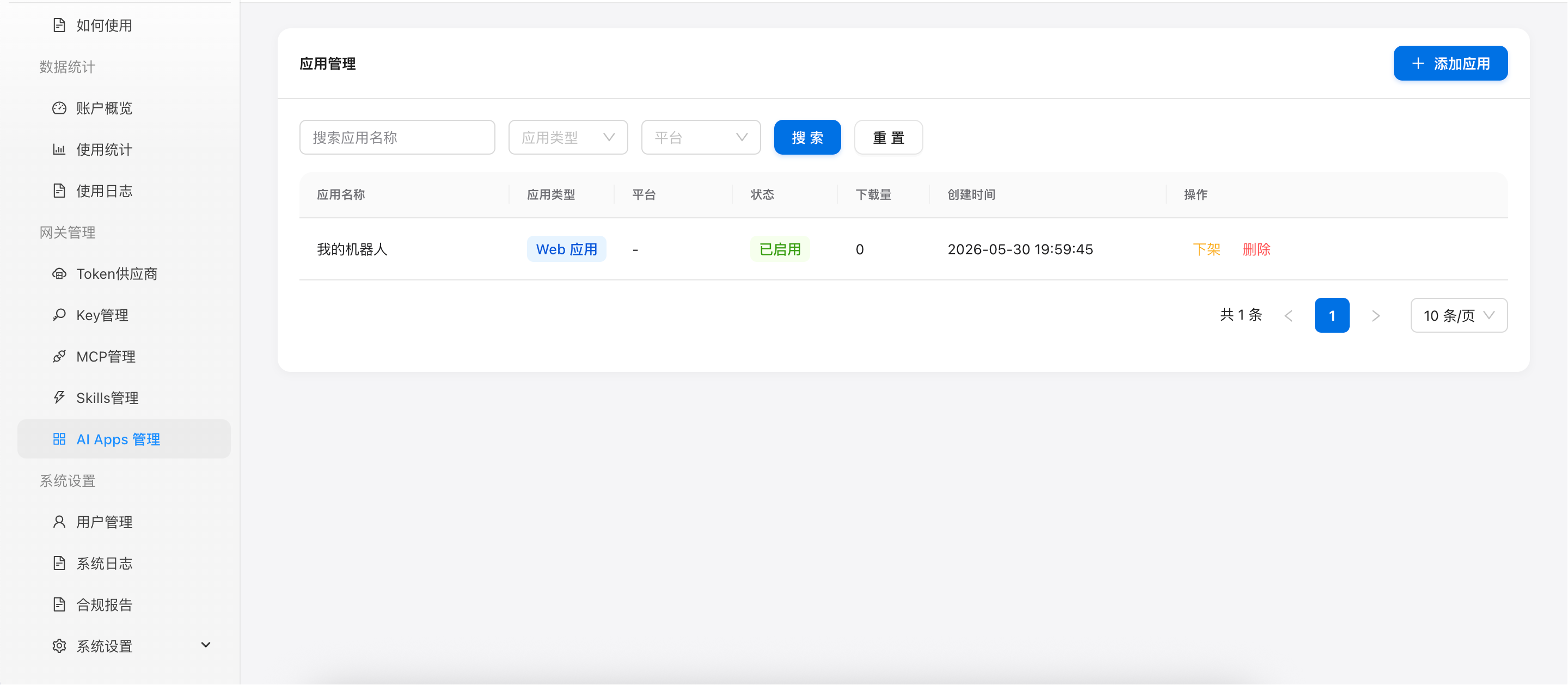
After logging into the admin panel, click "AI Apps" in the left navigation. The list page shows all created apps — name, type, platform, status, and download count.
One-Click Create My Bot
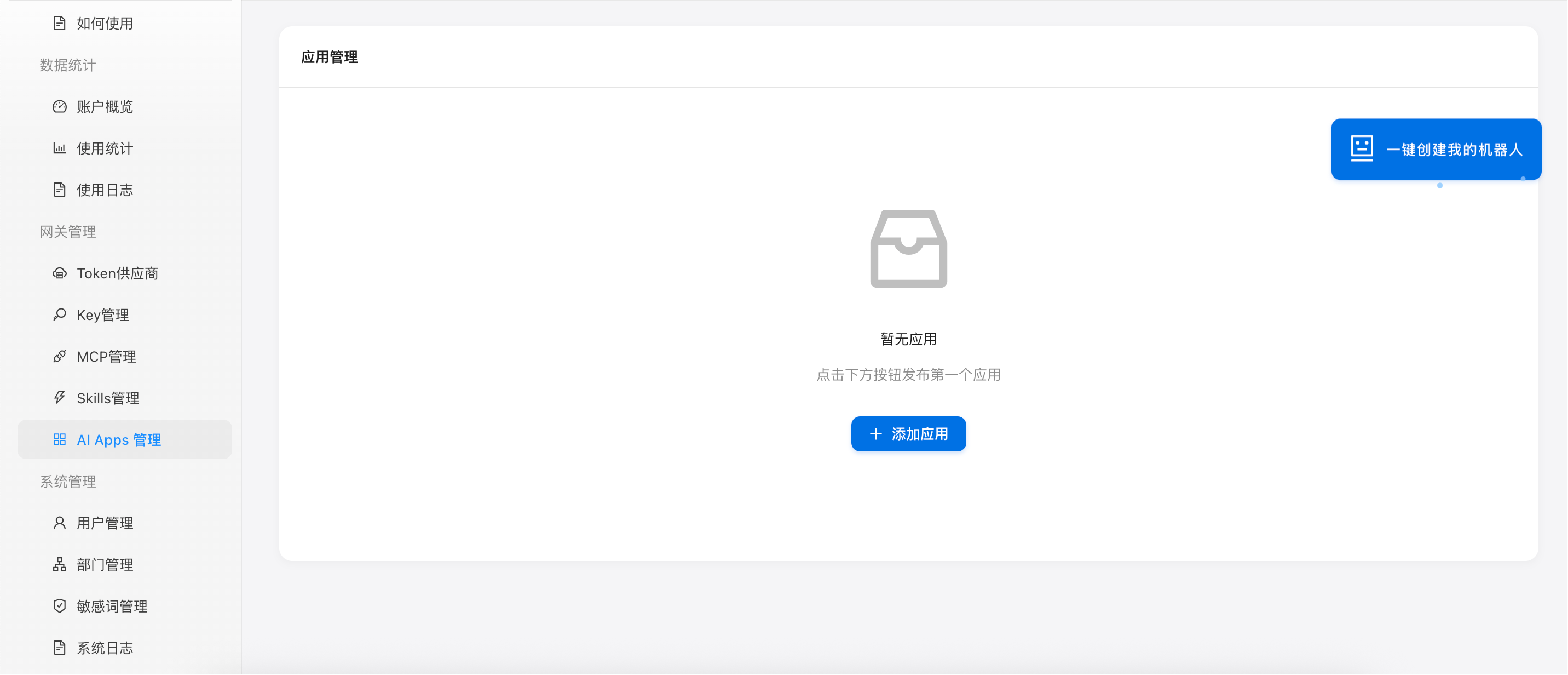
When entering the app list page for the first time, if the tenant has not created a bot app yet, a floating button with glow animation appears on the right side of the page — "One-Click Create My Bot".
"My Bot" is a free chatbot provided by Tarogo. Once created, you can use it in the App Center.
- Clicking the button shows a confirmation dialog. The system automatically creates a Web app named "My Bot".
/mybot/The app links to the /mybot/ path, and its status defaults to Enabled.- After creation, the floating button disappears and the app appears normally in the list.
- If a bot app already exists in the list, this button will not be shown.
Enter AI Apps Management Page
Enter AI Apps Management Page
Create a New App
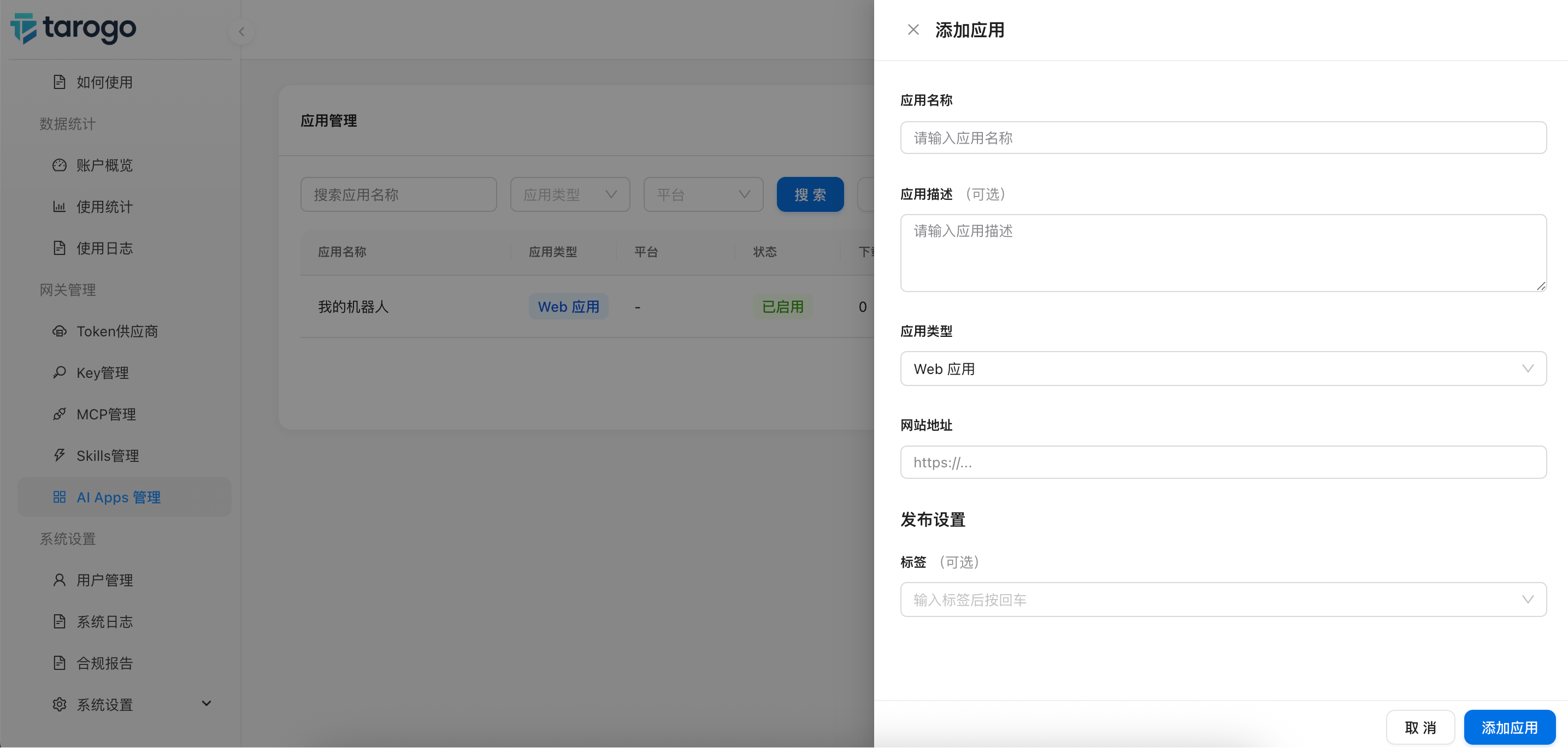
Click the "Add App" button in the top-right corner to open the creation form. Fill in different information based on the app type:
Basic Information (Common for All Types)
- App Name: Display name. A unique app code is auto-generated after creation.
- Description: Detailed introduction of the app, shown to team members.
- Tags: Classification tags for the app, e.g., "AI", "Productivity". Supports custom input.
Web App
- Select app type as "Web".
- Fill in the Website URL: Team members will be redirected to this URL on click.
Desktop App
- Select app type as "Desktop".
- Select target platform: Windows / macOS / Linux.
- Drag and drop to upload the installation package (.exe / .dmg / .AppImage). System auto-calculates file size and SHA256 checksum.
Mobile App
- Select app type as "Mobile".
- Select target platform: iOS / Android.
- Fill in the download URL: System auto-generates a QR code for phone scanning.
Create a New App
App Tags
When creating or editing an app, you can select multiple tags from the "Tags" dropdown. Tag options come from system presets or tenant customizations:
- Default preset tags: AI Tools, Productivity, Creative Design
- Admins can customize the tag list in "System Settings → Misc Settings → App Tags".
- Supports adding and deleting tags. Changes automatically sync to the create/edit dropdown options.
Enable the App
After creation, the app defaults to "Disabled" status — admin-only visible. After confirming the information is correct, click the "Enable" button in the action column. The app will immediately appear in the team App Market.
Manage App Lifecycle
Disabled or delisted apps can be "Edited" to modify configuration. Published apps must be delisted first before editing.
Both disabled and delisted apps can be "Enabled" to enter the market. The first enable time is automatically recorded.
Published apps can be "Delisted" to remove them from the market while retaining historical data.
After deletion, the app code is automatically released for reuse, allowing future creation of apps with the same name.
Next Steps
After logging in, team members switch to the "Applications" tab in the navigation bar to browse and use published apps.