
Create Account
Register a Tarogo account and start using AI Gateway services
Tip: Registration is a two-step process — first fill in your name and phone number to get a verification code, then set your login password via SMS code.
Registration Steps
Visit the Registration Page
Visit the Tarogo official website in your browser, click the "Free Register" button in the top right corner, or click the "Register" link on the login page to go to the registration page.
Fill in Basic Info & Get SMS Code
On the first step of the registration form, fill in the following:
- Name: Enter your real name (at least 2 characters)
- Phone: Enter your mobile number to receive the SMS verification code
- Agree to Terms: Check "I have read and agree to the Privacy Policy and Terms of Service"
After filling in, click the "Next" button. The system will send an SMS with a 6-digit verification code to your phone.
Enter Code & Set Password
On the second step, you need to:
- Enter Code: Enter the 6-digit verification code from your phone
- Set Password: Create a login password for your account (at least 8 characters)
- Confirm Password: Re-enter the same password to confirm
If you did not receive the code, click the "Resend" button next to the code input (wait for the 60-second countdown to finish).
Complete Registration
Click the "Complete Registration" button to submit. Upon success, you will be automatically logged in and redirected to the console, ready to start using the service.
Important Notes
- Ensure the phone number is valid, as it will be used to receive SMS codes and for subsequent login
- Password must be at least 8 characters. Use a strong password and keep it safe
- If you do not receive the SMS code, check your phone signal or click "Resend"
- There is a 60-second cooldown after sending a code; you can request again after the cooldown ends
- If you need to modify basic info during registration, click the "Back" button to return to the previous step
- Already have an account? Click the "Login Now" link at the bottom of the page
Login Instructions
After registration, you can log in to the Tarogo platform using the following methods
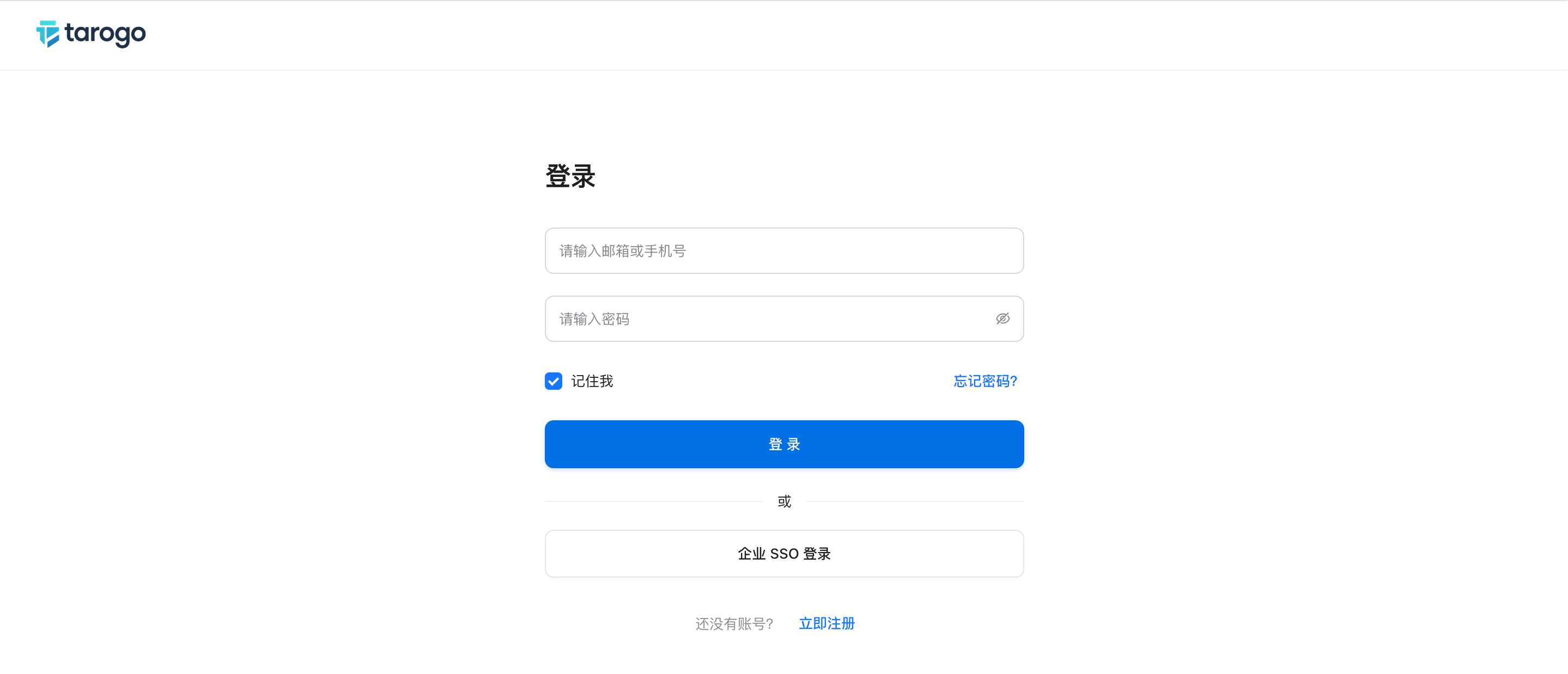
Login Instructions
Visit the Login Page
Open the Tarogo official website in your browser and click the "Login" button in the top right corner to go to the login page.
Enter Your Credentials
On the login page, enter your registered phone number or email address along with your password, then click the "Login" button. If your enterprise has configured SSO single sign-on, you can also log in directly via enterprise SSO.
Complete Login
Upon successful login, you will be automatically redirected to the corresponding management page based on your user role.
Forgot your password? Click the "Forgot Password" link on the login page and follow the prompts to reset it via SMS verification code.
If your enterprise has configured SSO single sign-on, please contact your administrator for the SSO login URL, or use the SSO login option on the enterprise login page.
Learn how to configure SSO single sign-on →Next Steps
After creating your account, you can start learning how to use the AI Gateway service.