
Misc Settings
Centrally manage various auxiliary configuration items, including basic toggles, MCP gateway keys, MCP server types, Skill tags, App tags, and custom provider types.
How to Access
In the tenant admin panel, navigate to "Settings → Misc Settings" to enter the configuration page. This page is only accessible to users with the Tenant Admin role.
Configuration Areas
Basic Settings
Three toggles controlling tenant member permissions:
- Allow Member Login:When enabled, regular members can log into the personal dashboard via email/password. When disabled, members cannot log in. After enabling, you can further choose "Allow Old Member Login" for existing historical members.
- Allow Copy Key:When enabled, users can see and copy API Key values in the Key list. When disabled, API Keys are displayed in masked form, enhancing security.
- Allow Create Personal Key:When enabled, regular members can self-service create personal API Keys without admin assistance. This toggle works together with the supplier's "Allow Personal Key" setting.
MCP Gateway Keys
Manage the RSA key pair for the MCP gateway, used to sign and verify JWT id_tokens for identity passthrough.
- Key Management:First-time users: click "Regenerate Key Pair" to generate an RSA key pair, then "Download Public Key" for the MCP Server to verify JWT signatures. For key rotation, click "Regenerate" again — the old key pair is immediately invalidated.
- Server Type Management:Manage MCP server type labels. Preset types include "Tool", "Finance", and "HR". Supports adding new types and deleting existing types (servers using a deleted type will be reset to empty).
Skill Tags
Manage Skill classification tags. System presets include "Image Processing" and "Text Processing". Admins can add or delete tags freely. Tags appear as dropdown candidates in the Skill creation form.
App Tags
Manage AI application classification tags. System presets include "AI Tools", "Productivity", and "Creative Design". Admins can add or delete tags. Tags appear in the app creation/edit form dropdown.
Custom AI Token Provider Types
Beyond built-in standard provider types (e.g., Deepseek API, Alibaba Cloud Bailian), admins can create custom provider types in Misc Settings for non-standard API compatibility.
Create Custom Provider Type
On the Misc Settings page, find the "Custom AI Token Provider Types" section and click the "Add" button. Fill in the following:
- Provider Name: Custom display name
- Provider Type Code: Identifier for model@type routing
- API URL: The provider's API endpoint
Use Cases
- Non-standard API compatibility - adapt APIs that are not OpenAI-compatible
- Enterprise private deployment - connect self-hosted LLM services
- Proxy forwarding - use AI Gateway as a middle proxy
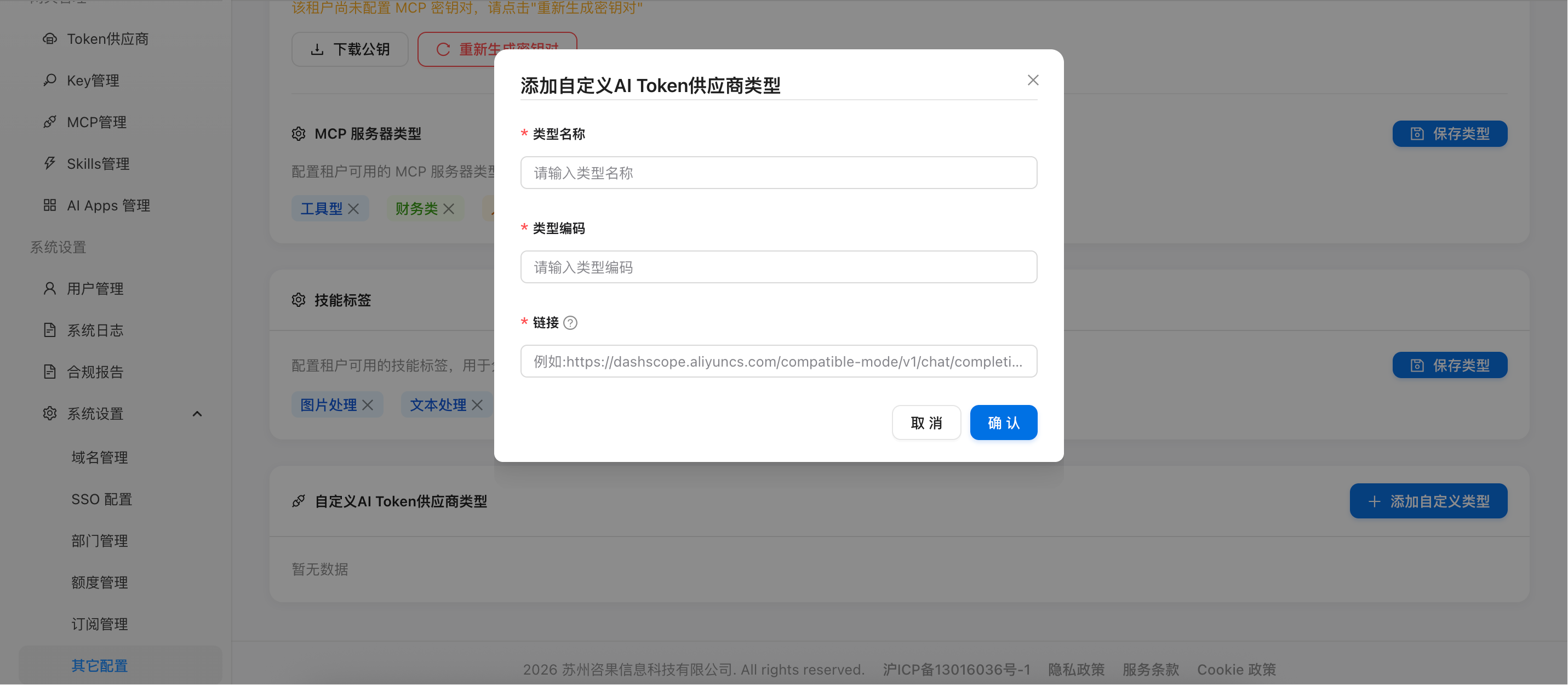
Figure: Creating a custom provider type
Note: If the API URL format is non-standard, the system will prompt for confirmation. The custom type will be available when adding a supplier.
Save & Edit
Each configuration area is independently edited and saved. Basic settings enter edit mode when clicking the "Edit" button; modify toggles and click "Save" to apply. Tags and type lists support direct add/delete with their respective "Save" buttons.
How to Use
- Navigate to "Settings → Misc Settings" page
- Make desired modifications in each configuration area (basic toggles, tag lists, type management, etc.)
- Each area's changes must be individually submitted by clicking its corresponding "Save" button. Changes take effect immediately