
Using Skills
Team members browse the Skill market to discover, download, and install community-shared AI Skills for direct use in AI Agents.
Usage Steps
Enter Skills Hub
- After logging in, go to "App Center" — the top navigation bar shows the Skills Hub entry and the number of available Skills.
- Click the "Skills Hub" tab to enter the Skill market page, where all enabled (public) Skills are displayed as cards.
- Each card includes: Skill name, version, author, rating, tags, and a brief description for easy browsing.
Search & Filter
- Enter Skill name, code, or description keywords in the search box to filter matching Skills in real time.
- Use the tag filter to quickly filter by category — click a tag to view only Skills in that category.
- Toggle "Favorites Only" to show only bookmarked Skills for quick access to frequently used ones.
- Use the "Browse by Category" feature to group and display Skills by tag.
View Details
- Click on a Skill card to enter the detail page and view full Skill information.
- The basic info section shows: Skill name, code, version, enabled status, author, visibility (public/private), tags, and detailed description.
- The external links section shows: code repository, documentation, and homepage links (if configured) for direct access.
- The stats panel shows: download count, favorites count, and user ratings to help evaluate Skill quality and popularity.
Download & Install
- Click the "Download" button on the detail page to download the Skill package in .zip format.
- After extracting, copy the Skill directory to the corresponding Skills directory based on your AI Agent type:
Rate & Favorite
- Rate Skills you have used (1-5 stars). Each user can only rate once, and ratings cannot be modified.
- Click the favorite button to add frequently used Skills to your favorites for quick access later.
- Ratings and favorites data is aggregated into Skill statistics, helping other members judge Skill usefulness.
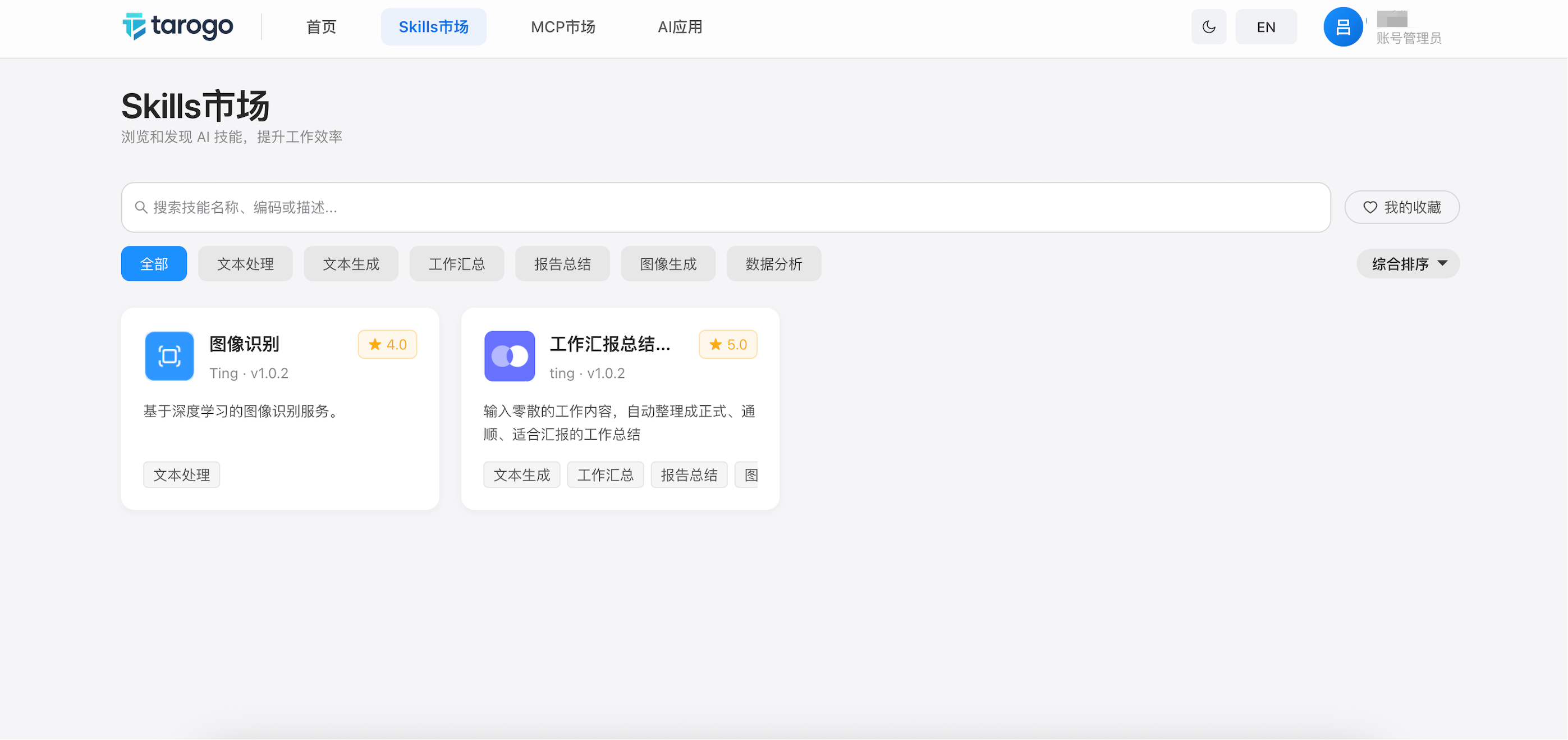
Figure 1: Skills Hub — Browsing the Skill Market
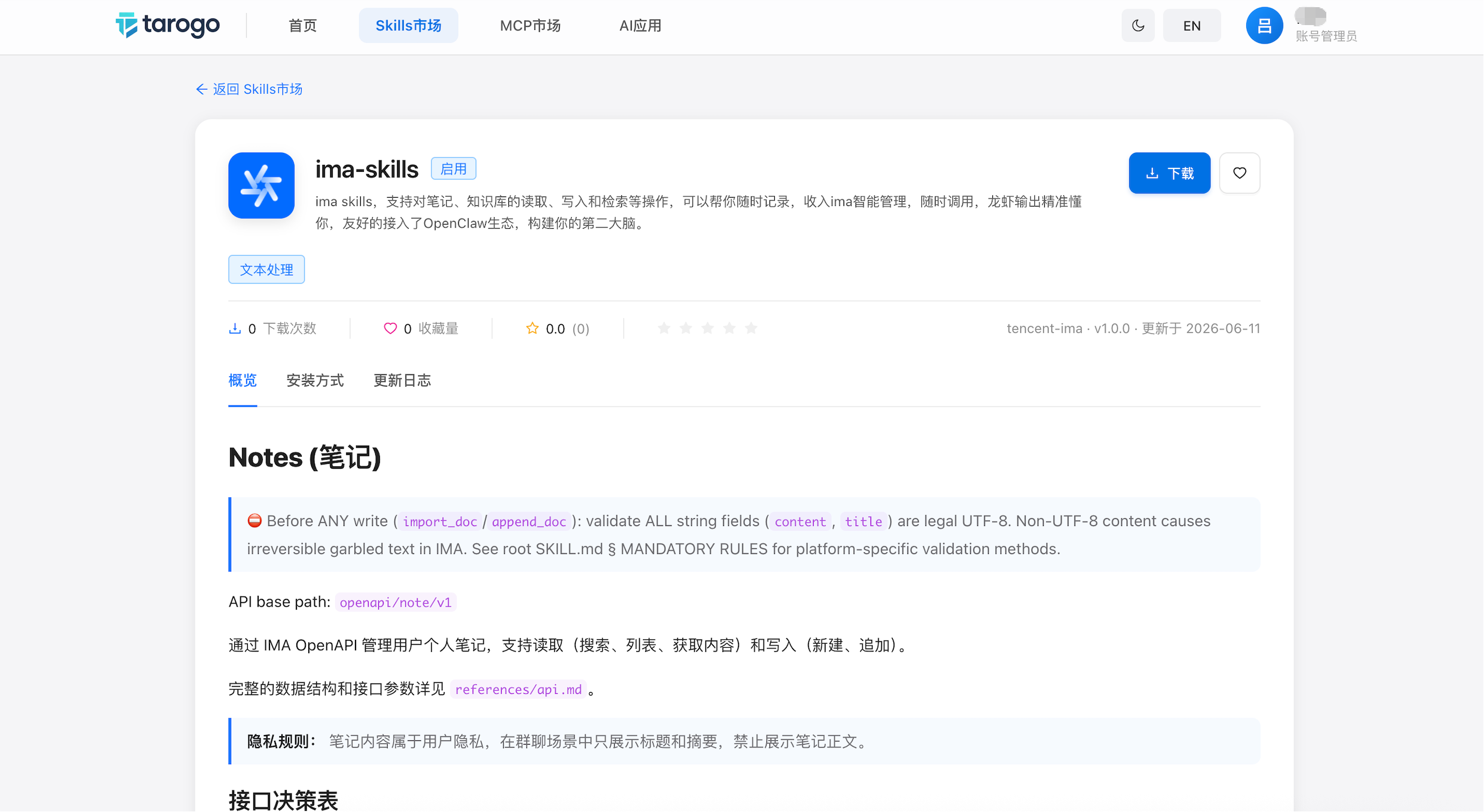
Figure 2: Skill Detail Page — Basic Info, Stats Panel & Installation Guide
Use Cases
Invoke in AI Chat
After installing a Skill, the AI Agent automatically detects and invokes installed Skills in chat. Based on the Skill's input Schema, the Agent understands your needs, fills in parameters, and executes the call — results appear directly in the conversation without switching tools manually.
One-Click Prompt Reuse
For prompt-based Skills, you can directly copy the Prompt template, fill in variables, and use it in any AI tool. When a good Prompt is saved as a Skill, the whole team can reuse it without writing from scratch each time.
Interactive Features
Search
Search by Skill name, code, or description keywords to quickly locate needed Skills. Results can be further filtered by tags.
Favorites
Click the heart icon to favorite frequently used Skills. Supports favorites-only filter mode. Favorite status is persisted locally.
Rating
Rate Skills after use (1-5 stars). Each user can rate only once. Ratings are aggregated into Skill statistics to help others make decisions.
Important Notes
- Confirm Skill compatibility with your AI Agent version before installation
- Verify the integrity of the downloaded zip package before extraction
- If a Skill is referenced in a workflow, confirm no workflow dependencies before deleting it