
Domain Management
Manage the enterprise domain allowlist for API Key binding. After adding and verifying an enterprise domain, API Keys can be created. Enabled domains allow enterprise members to create personal Keys using email addresses under that domain.
How to Access
In the tenant admin panel, navigate to "Settings → Domain Management" to enter the domain management page. This page is only accessible to users with the Tenant Admin role.
Purpose of Domain Management
Domain management is a prerequisite for API Key creation and usage. It serves two main purposes: First, the domain verification mechanism ensures only authenticated enterprises can use API Keys, preventing misuse. Second, enabled domains allow members to self-service create personal Keys using email addresses under that domain, simplifying Key distribution within the enterprise. Therefore, before going live, enterprise admins should add and enable at least one domain.
How to Use
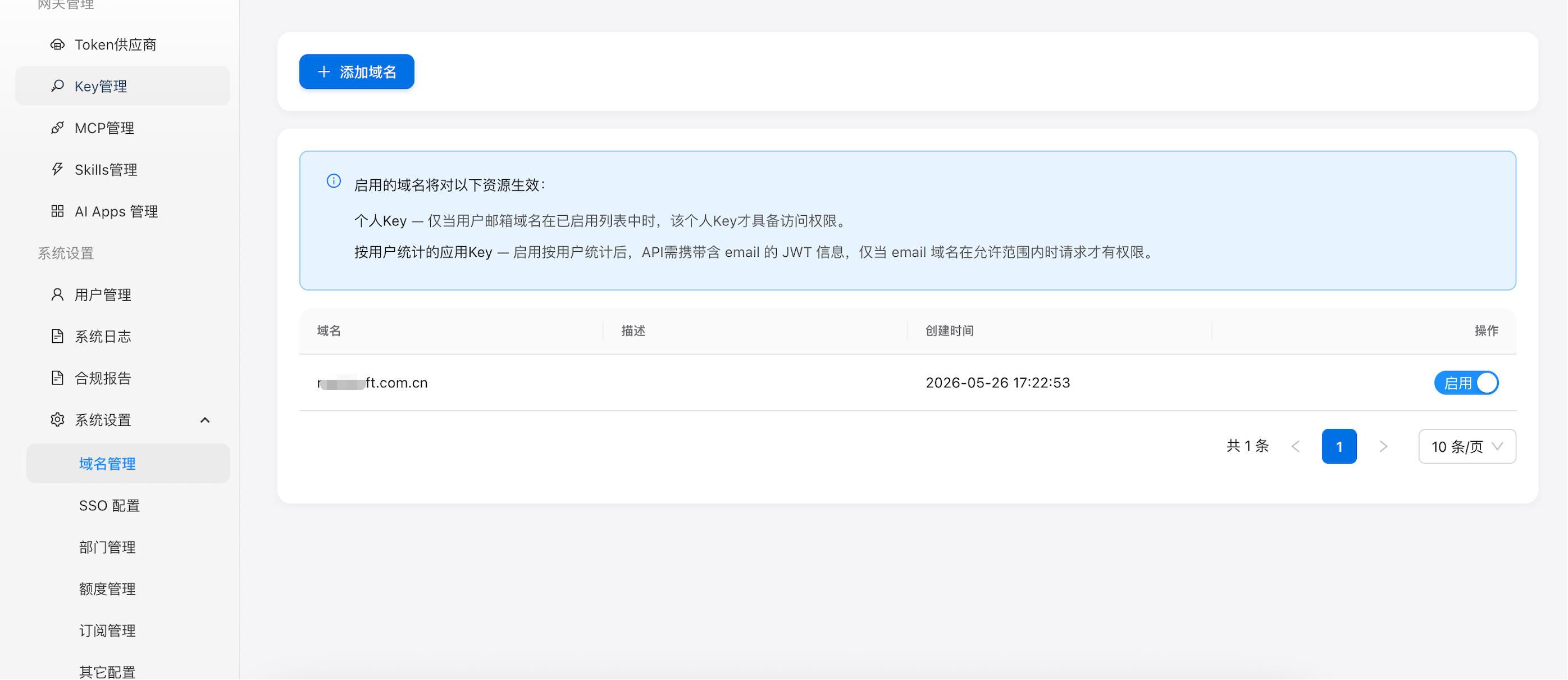
Figure 1: Domain management list showing configured domains and their status
How to Use
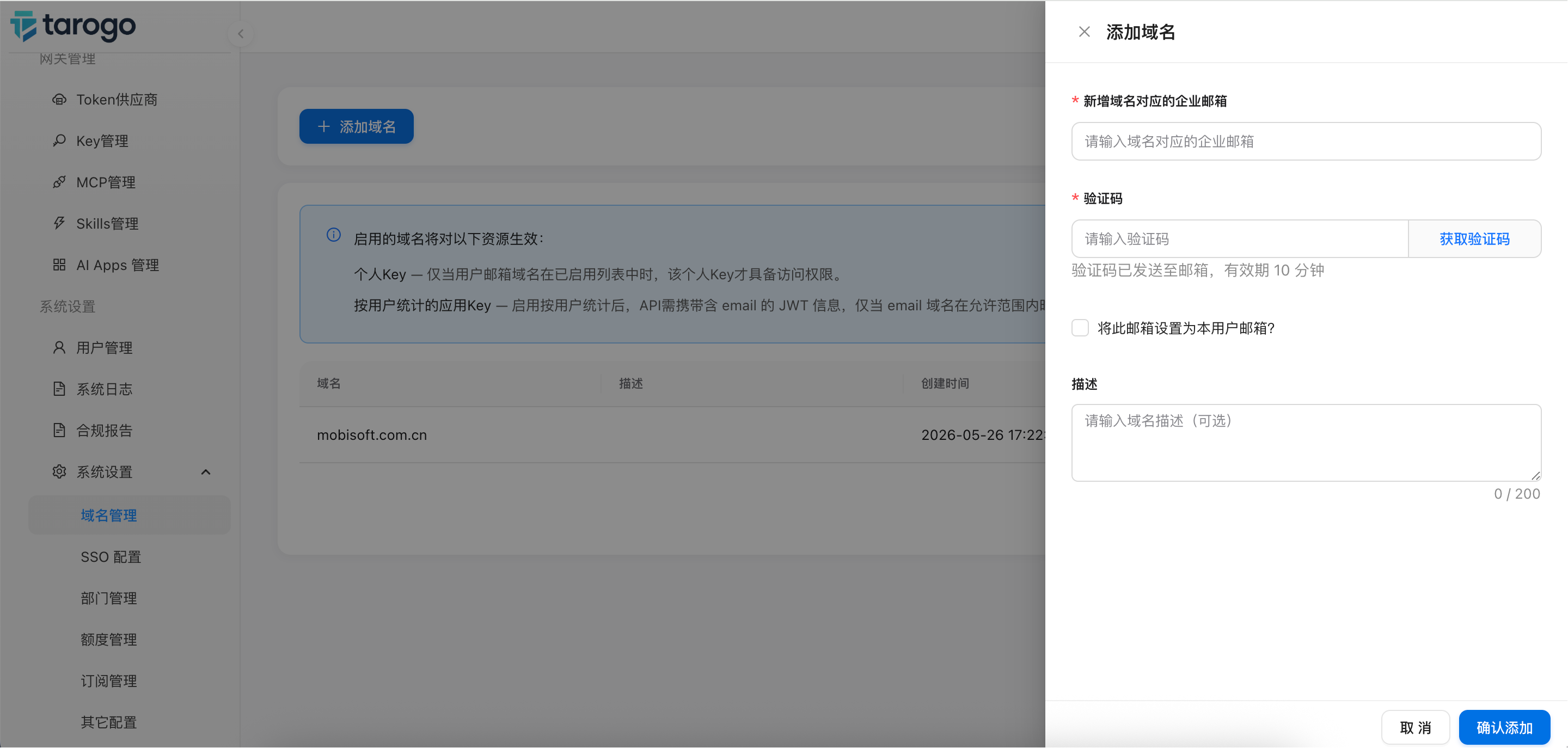
Figure 2: Add domain form
How to Use
- Navigate to "Settings → Domain Management" and click the "Add Domain" button
- In the drawer, enter an enterprise email address (e.g., admin@example.com). The domain part of the email will be the domain to add
- Click "Send Verification Code". A verification email will be sent. Enter the received code to complete verification
- After adding, toggle the switch to enable the domain. It will then be available for API Key creation
Notes
- Domain verification is based on email ownership, so you must use a corporate domain email to receive the code. Public email domains (e.g., gmail.com, qq.com) are not supported
- Multiple domains can be added to the allowlist. All enabled domains are allowed for Key creation
- Domains can be enabled/disabled at any time via the switch. Disabling a domain does not affect existing Keys