
Publish Guide
Admins register and manage MCP Servers, configure connections, authentication, and access control for secure team access to MCP services.
Who Can Configure
MCP Server registration and management require tenant_admin or system_admin privileges. Regular team members can only browse and use configured MCP Servers.
Configuration Steps
Enter MCP Management Page
- Log in as a tenant admin, select "MCP Management" from the left menu to enter the MCP Server list page.
- The list displays all registered MCP Servers — name, path, protocol, connection status, type, enabled status, etc.
- If the list is empty, the page shows an empty-state guide. Click the "Add MCP Server" button to start creating.
One-Click Add Weather MCP
The system includes a built-in weather MCP Server template. Admins can quickly deploy it with one click:
- On the MCP management list page, click the "One-Click Add Weather MCP" button
- The system automatically fills in server name, code, endpoint URL, and creates an API Key for authentication
- After creation, the Server is automatically enabled. All Agents can call the weather tools immediately
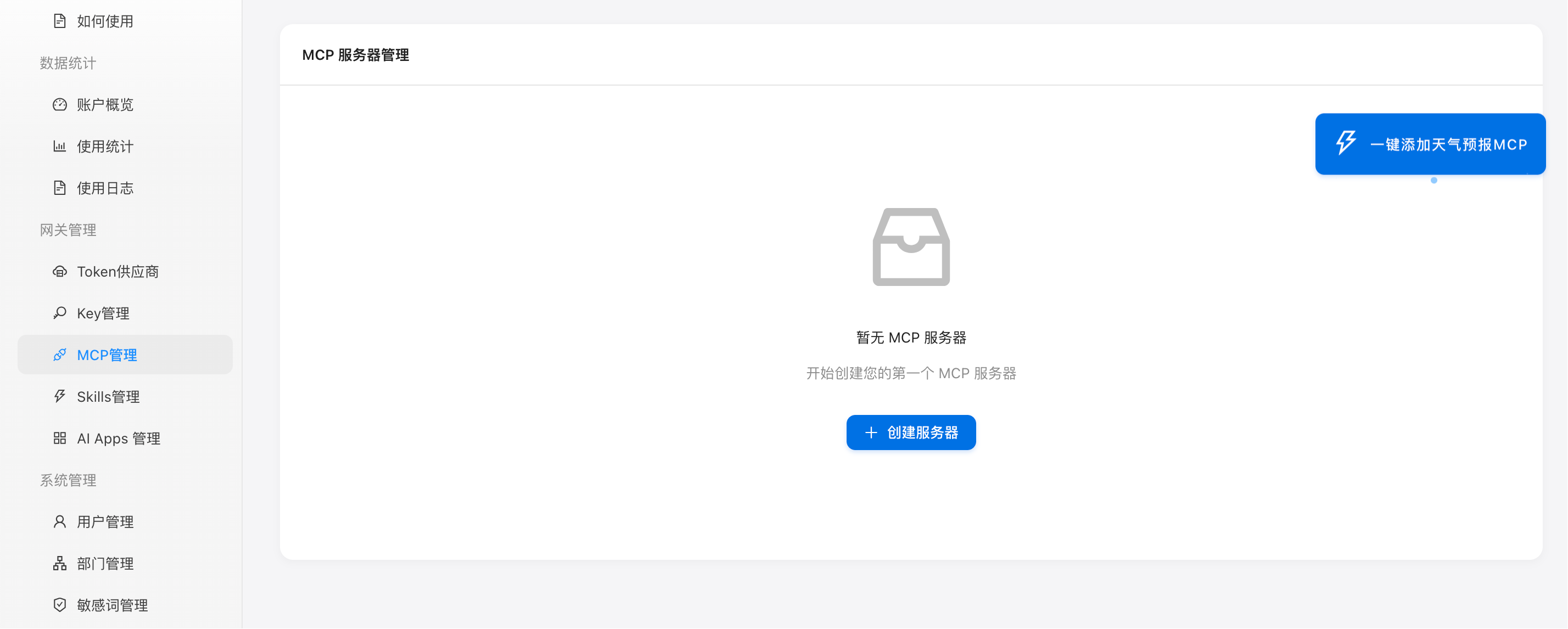
Figure 1: One-click add weather MCP
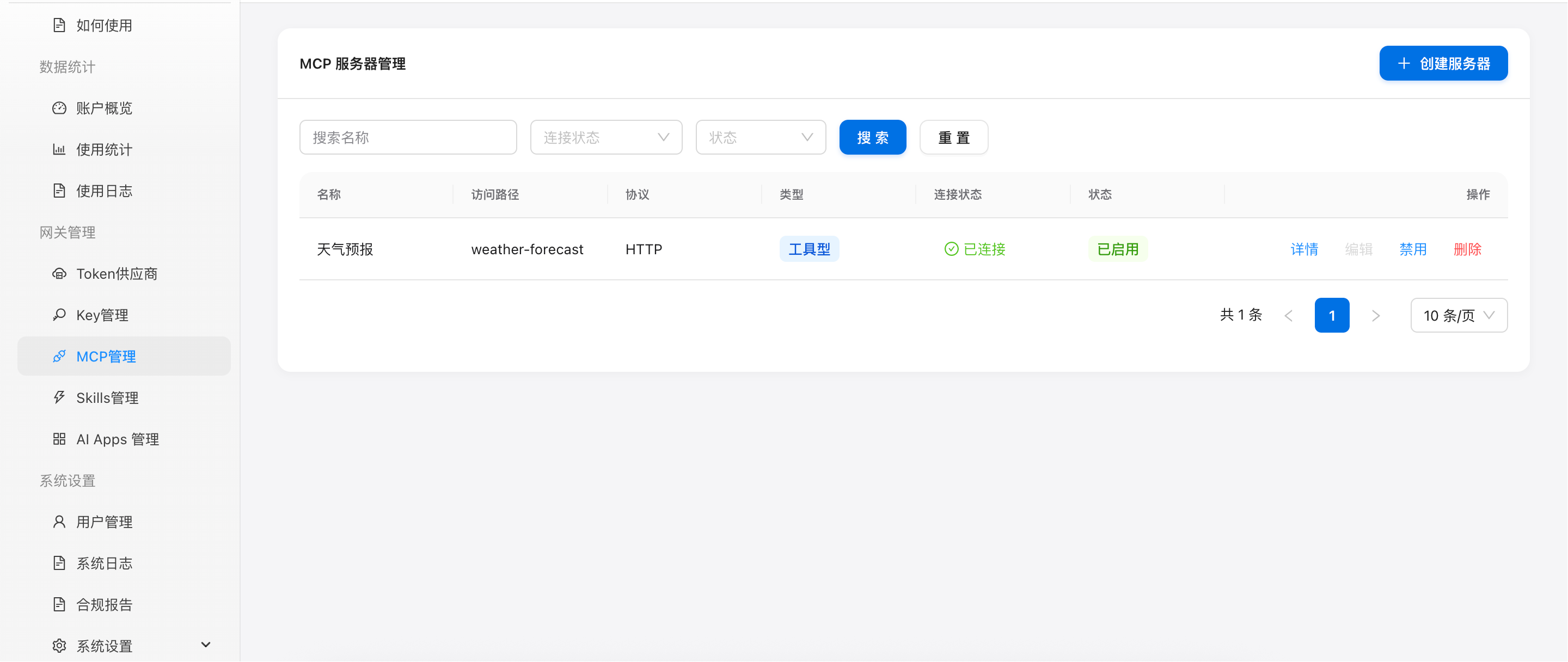
Figure 2: MCP management list page
Configure Basic Information
- Name: The display name of the MCP Server for easy identification and management.
- Server Code (serverCode): URL path identifier. Supports lowercase letters, numbers, and hyphens only. Must be globally unique. Agents access via /{serverCode}/mcp path. Cannot be modified after creation.
- Description: A description of the service's functionality to help team members understand its purpose.
- Type: Select from a predefined server type dropdown (e.g., "Tools", "Finance", "HR"). Admins can customize types in System Settings → Other Config → MCP Server Type.
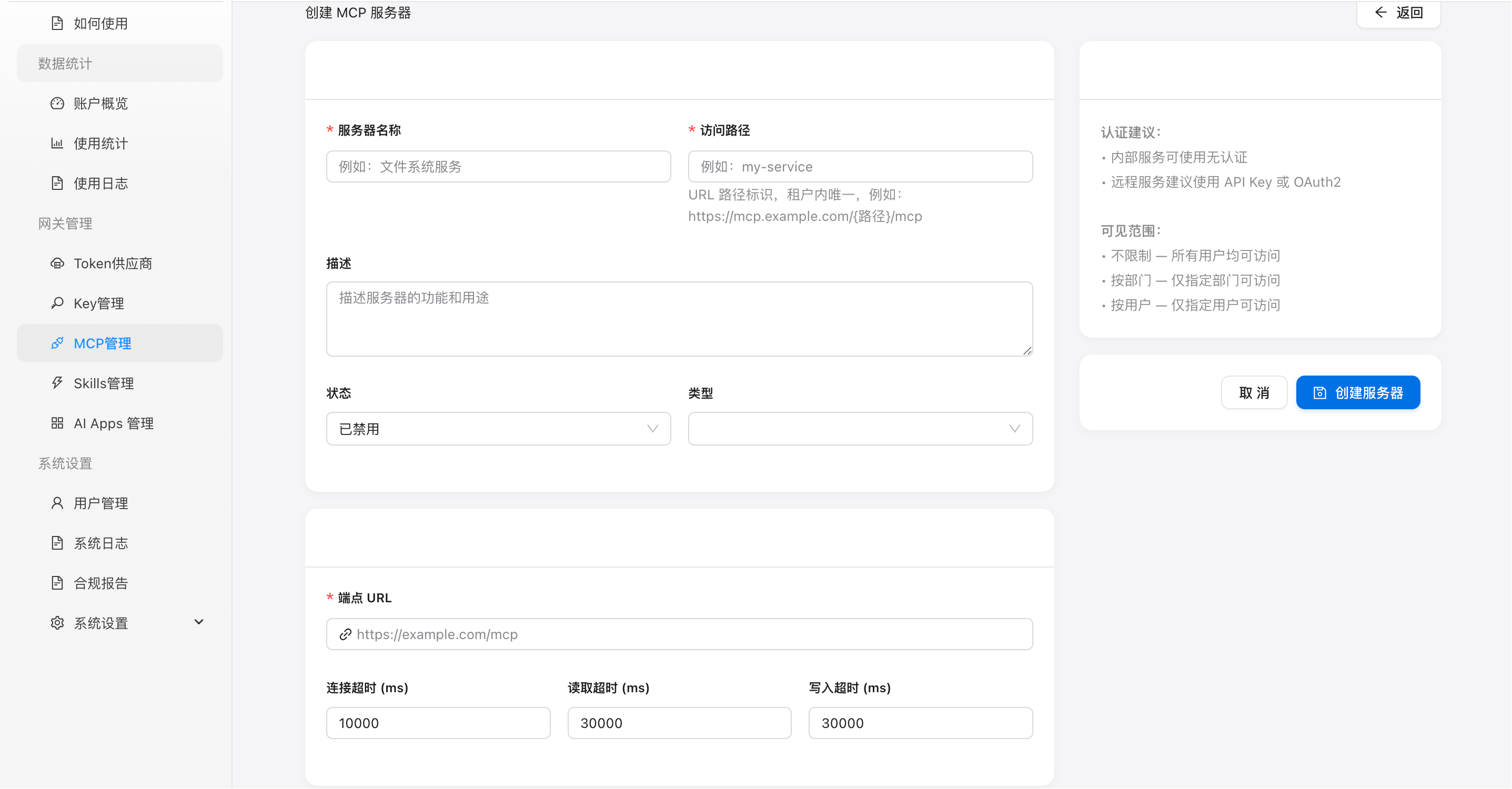
Figure 3: Create MCP Server form
Configure Connection & Authentication
- Protocol Type: Select HTTP, SSE, or WebSocket based on the MCP Server's actual protocol. The gateway supports SSE/HTTP fallback.
- Endpoint URL: The actual access URL of the MCP Server. Ensure the gateway can reach this address.
- Timeout Settings: Configure connection timeout, read timeout, and write timeout (in milliseconds). Defaults are 10000ms, 30000ms, 30000ms respectively.
- Auth Type: Supports five modes — None, API Key, Bearer Token, Basic Auth, and OAuth 2.0. Credentials are encrypted with AES-256-CBC.
Set Access Permissions
- Visible to All: All tenant members can access this service via Agent (default).
- Department Only: Only members of specified departments can access. Supports multiple departments.
- Specific Users: Only listed users can access, matched by email.
Connection & Capability Discovery
- After configuration, click the "Connect" button on the MCP Server detail page. The gateway performs the initialization handshake (initialize).
- On successful handshake, the gateway automatically discovers the MCP Server's capabilities (tools, resources, prompts), displayed in the "Capabilities" tab on the detail page.
- After connection is established, the gateway performs heartbeat checks every 30 seconds. Automatic reconnection is triggered after 5 consecutive failures.
Request Flow
https://mcp.gateway.ai/{serverCode}/mcpX-MCP-Id-Token headerConfiguration Details
MCP Gateway Key
Tenant admins can manage the MCP Gateway key pair in "System Settings → Other Config". Download the public key for MCP Servers to verify JWT id_token signatures. Regenerate key pairs when needed (old keys invalidated immediately).
View MCP Gateway key configuration details →Server Type Management
Admins can customize MCP server type labels in System Settings (defaults: "Tools", "Finance", "HR"). Select a type when creating an MCP Server. Deleting a type resets servers using it to empty.
Status Monitoring
The detail page provides connection status cards, heartbeat history timeline, and call trend charts. 30-second heartbeat checks with real-time display of success rate, response time, and online rate. Abnormal states are highlighted.
Start/Stop Management
Configured MCP Servers support enable/disable, edit (editable only when disabled), and delete operations. Services are accessible by Agent only when enabled. Connections are disconnected when disabled.
Best Practices
- Naming: Server code (serverCode) cannot be modified after creation. Use meaningful English identifiers, e.g., data-analysis, doc-generator
- Credential Security: API Keys, Tokens, passwords, etc. are encrypted with AES-256-CBC. Leave fields empty during editing to keep existing credentials unchanged.
- Network Security: Ensure the MCP Server endpoint is accessible by the gateway. Internal network deployment requires network connectivity configuration.
- Certificate Configuration: The gateway supports HTTPS self-signed certificates. For production environments, use certificates issued by a formal CA.
Next Steps
After the MCP Server is configured and enabled, team members can view and use it in the MCP Hub.